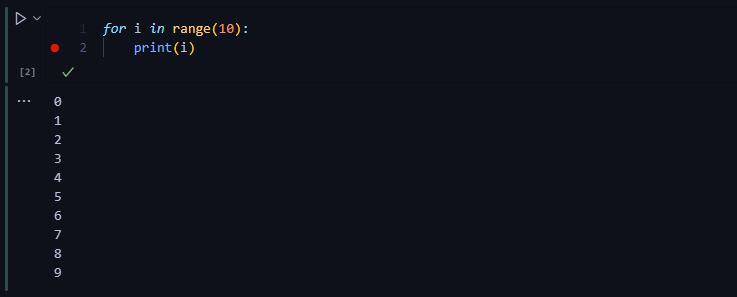
for i in range(10):
print(i)0
1
2
3
4
5
6
7
8
9Render in Quarto, quarto raw block, quarto table of content, quarto converting jupyter notebook to quarto, PATH in bash, bashrc, source, debugging notebooks

Quarto can render Jupyter Notebooks, which is a great feature. The ideal workflow is to use quarto preview to get a preview of the notebook and the quarto render to render the notebook to a different format.
Terminal
quarto preview notebook.ipynb
You can preview in different formats, like HTML, PDF, or Docx.
Terminal
quarto preview notebook.ipynb --to pdf
You can render without preview
Terminal
quarto render notebook.ipynbrawThe first block in a Quarto document is the raw block. It is used to specify the document format, title, and author.
You can use the toc option to automatically generated table of content in the output document. You can also specify the number of levels using toc-depth option. toc-expand option can be used to expand the table of content. You can also use toc-title to specify the title of the table of content and specify the location using toc-location.
You can convert a Jupyter Notebook to Quarto using the quarto convert command.
Terminal
quarto convert notebook.ipynbPATH in bash:The PATH is an environment variable that specifies a set of directories where executable programs are located. When you type a command in the terminal, the system searches through the directories specified in the PATH variable to find the executable program. This is like a python variable that lives in your shell.
For example, if you want to know from where your python is running, you can use the following command:
Terminal
which python
In order to print the PATH variable, you can use the following command:
Terminal
echo $PATH~/.bashrc fileIt’s a shell configuration file that is executed when you start a new shell session. You can add environment variables, aliases, and other shell configurations to this file.
For example you can create the alias ll to list all files in a directory:
vim ~/.bashrc
alias ll = 'ls -al'source and . commandIn bash, the source command is used to execute commands from a file in the current shell session. Read the content of a file, which can be a script, a configuration file, or a file containing functions or aliases. Execute in the current shell environment.
The dot . command is a synonym for the source command as we’ve seen before with ~/.bashrc.
for i in range(10):
    print(i)
0
1
2
3
4
5
6
7
8
9Let’s say you want to investigate how the cell above is executed. In VSCode you can go to the cell and create a breakpoint. Then you can run the cell in debug mode. Now you are in a UI that allows you to inspect the variables, step through the code, and see the output of the cell.

You can use the Step Over button to execute the current line and move to the next line. You can also use the Step Into button to move into a function or method call. The Step Out button allows you to move out of the current function or method. The Continue button allows you to continue the execution of the cell until the next breakpoint is reached.